In the first blog, we explored Cuata’s architecture—how the Computer-Using Agent works with plugins, Semantic Kernel orchestration, and the Think → Select Strategy → Execute loop.
Now let’s see Cuata in action through two real workflows:
- Teams Meeting Assistant: Joins your meeting when you step away, transcribes the discussion, takes screenshots of slides, and summarizes what you missed
- Browser Agent: Searches the web, reads articles, summarizes content, and writes findings into Microsoft Word
Both workflows use the same plugin system but orchestrate different strategies based on the task.
![https://dev-to-uploads.s3.amazonaws.com/uploads/articles/06qcbohoqq3ga4o9q7ho.JPG]()
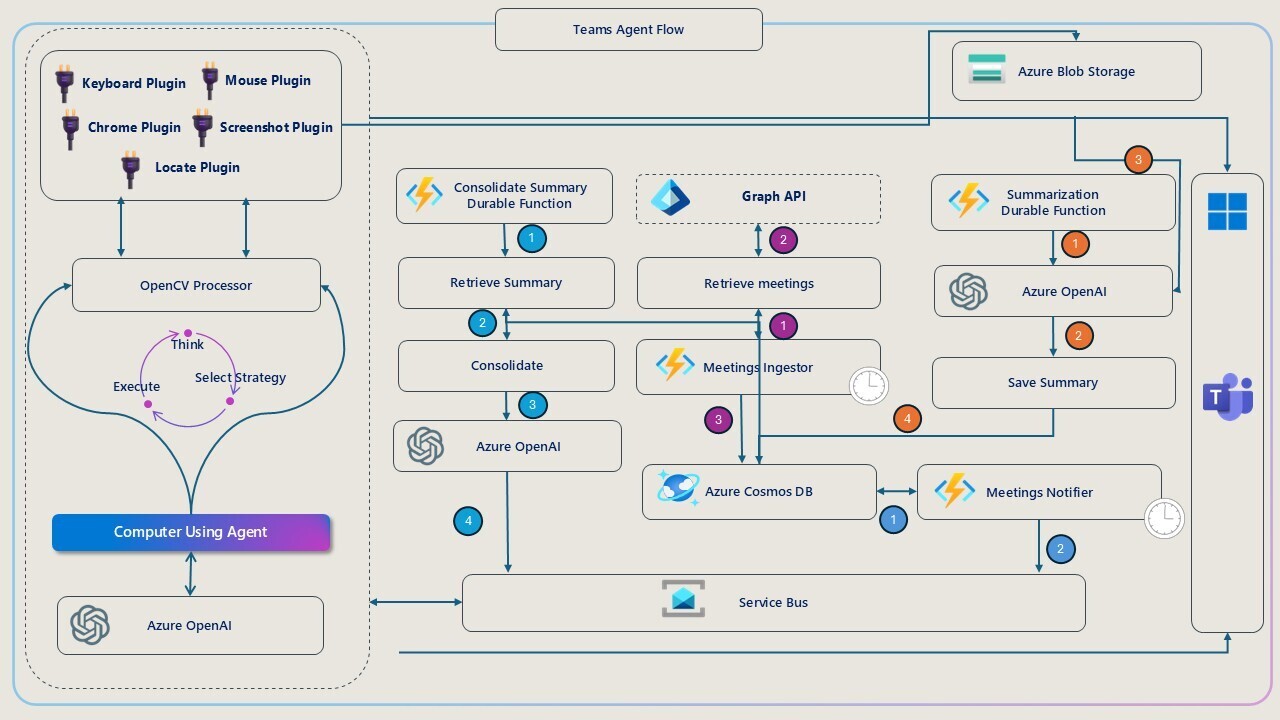
The Teams Agent workflow solves a simple problem: What if you need to step away from a meeting for a few minutes?
Instead of missing key discussions or asking teammates to catch you up later, Cuata:
- Detects when you leave your desk (using OpenCV face detection)
- Joins the meeting on your behalf
- Starts transcription and takes screenshots of shared slides
- Summarizes the discussion when you return
There are two main scenarios the Teams Agent handles:
 1
 2
 3
 4
 5
 6
 7
 8
 9
10
11
12
|
1. Meeting Notifier triggers (scheduled meeting about to start)
2. OpenCV checks if your face is visible on webcam
3. If you're NOT present:
   → Cuata opens Teams calendar
   → Searches for the meeting by title
   → Clicks "Join"
   → Mutes microphone
   → Starts transcription
   → Takes screenshots at intervals
4. When you return or meeting ends:
   → Stops transcription
   → Sends you a summary with key screenshots
|
1
2
3
4
5
6
7
8
|
1. Teams Agent detects you're in an active meeting
2. OpenCV checks if your face is visible on webcam
3. If you've LEFT:
   → Starts listening and transcribing
   → Takes screenshots of slides/shared content
4. When you return or meeting ends:
   → Stops transcription
   → Sends you a summary of what you missed
|
The Teams Agent follows a Master Strategy that decides which path to take:
 1
 2
 3
 4
 5
 6
 7
 8
 9
10
11
12
13
|
chatHistory.AddSystemMessage(
"""
You are a helpful assistant that can help with Microsoft Teams related tasks.
You can help listening to the meetings while the user is away.

Goal: Always follow the master strategy to pick the right strategy to follow.

**Master strategy:**

1. Capture the screen and verify if the meeting is open.
2. If the meeting is open, go to strategy 2.
3. If the meeting is not open, go to strategy 1.
""");
|
This strategy executes when no meeting window is currently open:
 1
 2
 3
 4
 5
 6
 7
 8
 9
10
11
12
13
14
15
16
17
18
19
20
21
22
23
24
25
|
**Strategy 1:**

1. Open Microsoft Teams.
2. Search for "calendar" and click on it.
3. Take a screenshot and verify if the calendar is open.
4. Search for the meeting with the title that happens today and click on it.
5. Take a screenshot and verify if the popup opens with Join button.
6. Search for "join" button and click on it.
7. Take a screenshot and verify if "Join now" button appears.
8. In the meeting popup, search for "Join now" button and click on it.
9. Take a screenshot and verify if you are inside the meeting.
10. Maximize the meeting window by pressing "Win" + "Up" key.
11. Search for "Mic" button and click on it to mute.
12. Take a screenshot and verify if you are muted.
13. Search for "more" button and click on it.
14. Take a screenshot and verify if more options menu is open.
15. Search for "Record and transcribe" button.
16. Take a screenshot and verify if popup with "Start transcription" opens.
17. Click on "Start transcription" button.
18. If it asks for permission, click on "Confirm" button.
19. Take a screenshot and verify if transcription started.
20. Start listening to the meeting and take notes.
21. Once meeting is over, search for "Leave" button and click on it.
22. Take a screenshot and verify if you are out of the meeting.
23. Share the notes with the user.
|
Each step includes screenshot validation to ensure the action succeeded before proceeding.
This strategy executes when you’re already in a meeting but stepped away:
 1
 2
 3
 4
 5
 6
 7
 8
 9
10
11
|
**Strategy 2:**

1. Verify if transcription is already started (check right panel for transcript).
2. If transcription NOT started:
   → Search for "more" button and click on it.
   → Take a screenshot and verify if more options menu is open.
   → Search for "Record and transcribe" button.
   → Take a screenshot and verify if popup with "Start transcription" opens.
   → Click on "Start transcription" button.
   → If it asks for permission, click on "Confirm" button.
   → Take a screenshot and verify if transcription started.
|
The agent doesn’t rejoin or navigate—it just ensures transcription is running.
The OpenCV Processor runs continuously in the background, checking if your face is visible on the webcam.
 1
 2
 3
 4
 5
 6
 7
 8
 9
10
11
12
13
14
15
16
17
18
19
20
|
// Simplified OpenCV face detection logic
public bool IsUserPresent()
{
    using var frame = _videoCapture.QueryFrame();
    if (frame == null) return false;

    // Use Haar Cascade classifier for face detection
    var faces = _faceCascade.DetectMultiScale(
        frame.Convert<Gray, byte>(),
        scaleFactor: 1.1,
        minNeighbors: 3
    );

    bool isPresent = faces.Length > 0;

    // Update global state
    CuataState.Instance.IsPresent = isPresent;

    return isPresent;
}
|
When IsPresent changes from true to false, Cuata triggers the Teams Agent workflow:
 1
 2
 3
 4
 5
 6
 7
 8
 9
10
11
12
13
14
|
CuataState.Instance.OnPresenceChanged += isPresent =>
{
    if (isPresent)
    {
        Console.WriteLine("👤 User is present. Stopping the app.");
        _recognizer.StopContinuousRecognitionAsync().Wait();
        return;
    }
    else
    {
        Console.WriteLine("🚶 User has left. Starting Teams Agent...");
        // Trigger Teams Agent workflow
    }
};
|
This creates a reactive workflow that adapts to your physical presence.
While in the meeting, Cuata uses Azure Speech Services for continuous transcription:
 1
 2
 3
 4
 5
 6
 7
 8
 9
10
11
12
13
14
15
16
17
18
19
|
// Start continuous recognition
await _recognizer.StartContinuousRecognitionAsync();

// Handle recognized speech
_recognizer.Recognized += (sender, e) =>
{
    if (e.Result.Reason == ResultReason.RecognizedSpeech)
    {
        Console.WriteLine($"🗣️ Recognized: {e.Result.Text}");

        // Store transcript
        CuataState.Instance.AddTranscript(new TranscriptEntry
        {
            Timestamp = DateTime.UtcNow,
            Speaker = "Unknown", // Teams doesn't provide speaker ID
            Text = e.Result.Text
        });
    }
};
|
The transcript accumulates in memory and gets sent to Azure Durable Functions for summarization when the meeting ends.
Every 30 seconds (or when a slide changes), Cuata takes a screenshot:
 1
 2
 3
 4
 5
 6
 7
 8
 9
10
11
12
13
14
15
16
17
18
19
20
21
22
23
24
25
26
27
28
29
|
// Periodic screenshot capture
var screenshotTimer = new Timer(async _ =>
{
    var screenshot = ScreenCapture.CaptureScreen();
    var filename = $"meeting-{DateTime.UtcNow:yyyyMMddHHmmss}.png";

    // Save to Azure Blob Storage
    await _blobClient.UploadAsync(filename, screenshot);

    // Ask Azure OpenAI to describe the screenshot
    var description = await _chatService.GetChatMessageContentAsync(
        new ChatHistory
        {
            new ChatMessageContentItemCollection
            {
                new TextContent("Describe this meeting slide briefly."),
                new ImageContent(screenshot, "image/png")
            }
        }
    );

    CuataState.Instance.AddScreenshot(new ScreenshotEntry
    {
        Timestamp = DateTime.UtcNow,
        BlobUrl = filename,
        Description = description.Content
    });

}, null, TimeSpan.Zero, TimeSpan.FromSeconds(30));
|
This creates a visual timeline of the meeting—each screenshot is analyzed and described by Azure OpenAI Vision.
When the meeting ends (detected by OpenCV showing you’ve returned or by the “Leave” button being clicked), Cuata sends all transcripts and screenshot descriptions to Azure Durable Functions for consolidation.
 1
 2
 3
 4
 5
 6
 7
 8
 9
10
11
12
13
14
15
16
17
18
19
20
21
22
23
24
25
26
27
28
29
30
31
32
33
34
35
36
37
|
// Orchestrator function
[Function(nameof(SummarizeMeetingOrchestrator))]
public async Task<MeetingSummary> SummarizeMeetingOrchestrator(
    [OrchestrationTrigger] TaskOrchestrationContext context)
{
    var meetingData = context.GetInput<MeetingData>();

    // Activity 1: Consolidate transcript
    var transcriptSummary = await context.CallActivityAsync<string>(
        nameof(SummarizeTranscriptActivity),
        meetingData.Transcripts
    );

    // Activity 2: Analyze screenshots
    var screenshotAnalysis = await context.CallActivityAsync<List<ImportantSlide>>(
        nameof(AnalyzeScreenshotsActivity),
        meetingData.Screenshots
    );

    // Activity 3: Generate final summary
    var finalSummary = await context.CallActivityAsync<string>(
        nameof(GenerateFinalSummaryActivity),
        new { transcriptSummary, screenshotAnalysis }
    );

    // Activity 4: Send notification to user
    await context.CallActivityAsync(
        nameof(SendNotificationActivity),
        new { summary = finalSummary, slides = screenshotAnalysis }
    );

    return new MeetingSummary
    {
        FinalSummary = finalSummary,
        ImportantImageUrls = screenshotAnalysis.Select(s => s.BlobUrl).ToList()
    };
}
|
The Durable Function:
- Summarizes the transcript using Azure OpenAI
- Identifies important slides from screenshot descriptions
- Generates a final summary combining both
- Sends a notification to your desktop with the summary and slide links
![https://dev-to-uploads.s3.amazonaws.com/uploads/articles/ljltxs8jrsbd0lmw1mm7.JPG]()
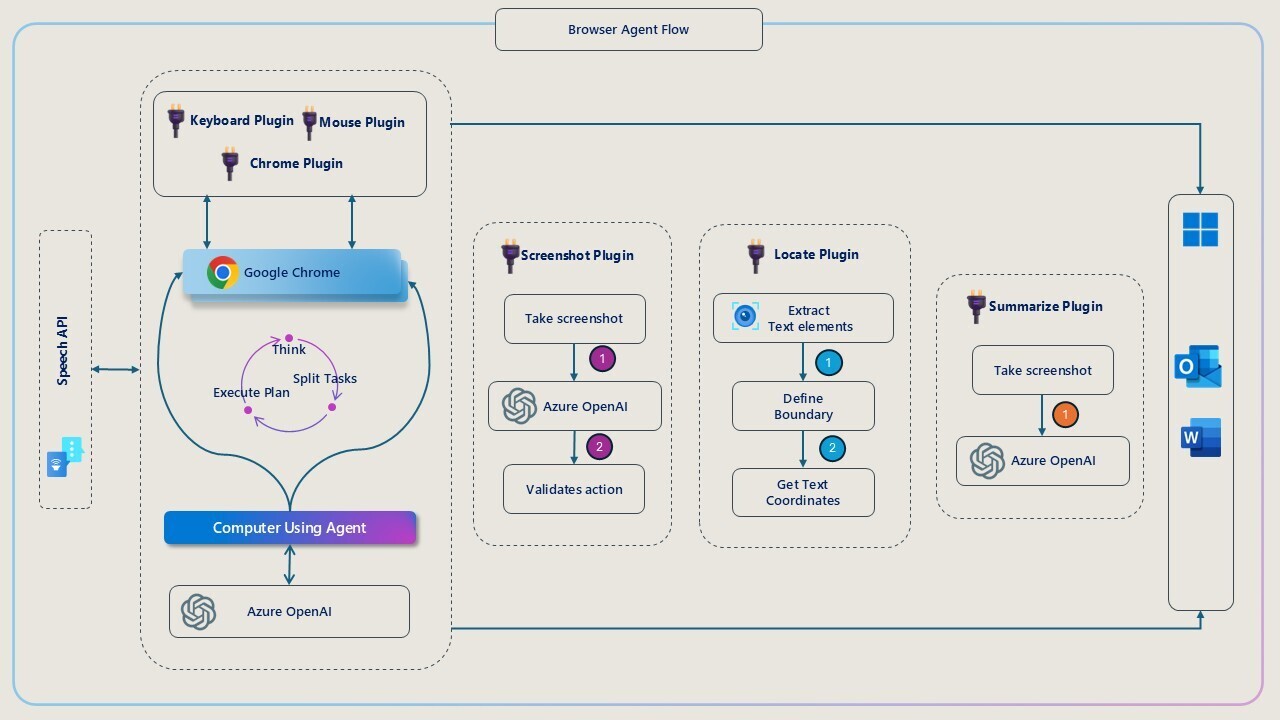
The Browser Agent handles a different kind of task: autonomous web research and documentation.
You can ask Cuata:
- “Search for live mint articles about stock market news”
- “Find Elon Musk’s Wikipedia page and summarize it”
- “Read this article and write a summary in Word”
The Browser Agent uses voice commands (Azure Speech) and executes multi-step workflows autonomously.
The Browser Agent doesn’t just execute a script—it thinks recursively:
 1
 2
 3
 4
 5
 6
 7
 8
 9
10
11
12
13
14
15
16
17
18
19
20
21
22
23
24
25
26
27
28
29
|
chatHistory.AddSystemMessage(
"""
You are a powerful desktop automation assistant capable of observing the screen
visually, reasoning about UI elements, and performing system-level actions.

You work like a human: you see the screen, think, and interact using the mouse and keyboard.

🧠 Reasoning Strategy:

1. Act like a human: observe the screen, think, and act.
2. Use screenshots to verify actions and analyze UI elements.
3. Use plugins to perform actions based on observations.
4. Always reason based on the current screen and context.
5. If you are not sure about the next action, ask for clarification.

Thought Process:

Split the user goal into multiple steps, each with a verification step.

Example 1: Search for live mint related articles
[
    {"Verify if you are already at the search result page"},
    {"If not, open Google Chrome"},
    {"Type the article to be found along with livemint in the search box"},
    {"Search for 'live mint' in the page using locate plugin and click on it"},
    {"Take a screenshot to verify if we done the previous action correctly"},
    {"Scroll through the articles and find any related to live mint"}
]
""");
|
The agent decomposes the user’s request into smaller sub-goals and validates each step before proceeding.
The Browser Agent uses these plugins:
- Opens URLs
- Navigates browser history (back/forward)
- Refreshes pages
- Opens/closes tabs
- Takes screenshots to “see” what’s on screen
- Uses Azure OCR to find clickable text
- Returns coordinates for mouse clicks
- Captures the current screen
- Sends it to Azure OpenAI Vision
- Asks: “Summarize this webpage/article”
- Returns the summary
- Opens Microsoft Word
- Writes summary text into a new document
- Saves the file
11. Example Workflow: “Search for stock market news and find Motherson Sumi articles”
Here’s how the Browser Agent executes this request:
Step 1 - Open Chrome and Search:
 1
 2
 3
 4
 5
 6
 7
 8
 9
10
11
|
// AI Decision: "Open Google Chrome and search for stock market news"
await ChromePlugin.OpenUrl("https://www.google.com");

// Wait for page load
await Task.Delay(2000);

// Locate search box and type query
await LocatePlugin.LocateElementInScreenshot("Search");
await MousePlugin.LeftClick();
await KeyboardPlugin.TypeText("Stock Market news");
await KeyboardPlugin.PressEnter();
|
Step 2 - Validate Search Results:
 1
 2
 3
 4
 5
 6
 7
 8
 9
10
|
// AI Decision: "Take a screenshot and verify we're at search results"
var validation = await ScreenshotPlugin.TakeScreenshotAndVerify(
    "Are we at Google search results for 'Stock Market news'?"
);

if (!validation.Contains("yes"))
{
    // Retry logic
    Console.WriteLine("❌ Search failed, retrying...");
}
|
Step 3 - Find Motherson Sumi Article:
1
2
3
4
5
6
|
// AI Decision: "Scroll and locate 'Motherson Sumi' in search results"
await MousePlugin.Scroll(-3); // Scroll down
await Task.Delay(1000);

await LocatePlugin.LocateElementInScreenshot("Motherson Sumi");
await MousePlugin.LeftClick();
|
Step 4 - Summarize the Article:
1
2
3
4
|
// AI Decision: "The article is open, now summarize it"
var summary = await SummarizePlugin.SummarizePage(isFullScreen: true);

Console.WriteLine($"📄 Summary: {summary}");
|
Step 5 - Write Summary to Word:
1
2
3
4
5
6
7
|
// AI Decision: "Open Word and write the summary"
await WordPlugin.OpenWord();
await Task.Delay(2000);

await WordPlugin.WriteWord(summary);

Console.WriteLine("✅ Summary written to Word!");
|
The Browser Agent supports voice commands using Azure Speech Services:
 1
 2
 3
 4
 5
 6
 7
 8
 9
10
11
12
13
14
15
16
17
18
19
20
21
22
23
24
25
26
27
28
29
30
31
32
33
34
35
36
|
// Start continuous speech recognition
await _recognizer.StartContinuousRecognitionAsync();

_recognizer.Recognized += async (sender, e) =>
{
    if (e.Result.Reason == ResultReason.RecognizedSpeech)
    {
        var userCommand = e.Result.Text;
        Console.WriteLine($"🎤 You said: {userCommand}");

        if (userCommand.ToLower().Contains("quit"))
        {
            await _recognizer.StopContinuousRecognitionAsync();
            return;
        }

        // Add user command to chat history
        chatHistory.AddUserMessage(userCommand);

        // Let Semantic Kernel orchestrate the workflow
        var response = await _chatService.GetChatMessageContentAsync(
            chatHistory,
            executionSettings: new OpenAIPromptExecutionSettings
            {
                ToolCallBehavior = ToolCallBehavior.AutoInvokeKernelFunctions,
                Temperature = 0.2
            },
            kernel: _kernel
        );

        chatHistory.Add(response);

        // Speak the response
        await SpeakAsync(response.Content);
    }
};
|
You can literally talk to Cuata and watch it execute your research tasks autonomously.
The Summarize Plugin captures the screen and sends it to Azure OpenAI for analysis:
 1
 2
 3
 4
 5
 6
 7
 8
 9
10
11
12
13
14
15
16
17
18
19
20
21
22
23
24
25
26
27
28
29
30
31
32
33
34
35
36
37
|
[KernelFunction, Description("Summarizes the current screen content")]
public async Task<string> SummarizePage(
    [Description("Is the content full screen?")] bool isFullScreen)
{
    // Capture screen
    ScreenCapture sc = new ScreenCapture();
    Image img = sc.CaptureScreen();

    using var bmp = new Bitmap(img);
    using var ms = new MemoryStream();
    bmp.Save(ms, ImageFormat.Png);
    ms.Position = 0;

    var imageData = new ReadOnlyMemory<byte>(ms.ToArray());

    // Send to Azure OpenAI Vision
    var chatHistory = new ChatHistory();
    chatHistory.AddUserMessage(new ChatMessageContentItemCollection
    {
        new TextContent(isFullScreen
            ? "Summarize everything you see on this screen in detail."
            : "Summarize the main content on this screen."),
        new ImageContent(imageData, "image/png")
    });

    var response = await _chatService.GetChatMessageContentAsync(
        chatHistory,
        executionSettings: new OpenAIPromptExecutionSettings
        {
            MaxTokens = 1000,
            Temperature = 0.3
        }
    );

    Console.WriteLine($"📄 Summary: {response.Content}");
    return response.Content ?? "Unable to summarize.";
}
|
This lets Cuata read articles, analyze charts, understand diagrams—anything visible on the screen.
The Word Plugin uses Office Interop to write summaries directly into Microsoft Word:
 1
 2
 3
 4
 5
 6
 7
 8
 9
10
11
12
13
14
15
16
17
18
19
20
21
22
23
24
|
[KernelFunction, Description("Writes summary to Microsoft Word")]
public string WriteWord([Description("The summary text")] string summary)
{
    try
    {
        var wordApp = new Microsoft.Office.Interop.Word.Application();
        wordApp.Visible = true;

        var doc = wordApp.Documents.Add();
        var range = doc.Range();

        range.Text = summary;
        range.Font.Name = "Calibri";
        range.Font.Size = 12;

        Console.WriteLine("📄 Summary written to Word!");
        return "Summary written to Word document.";
    }
    catch (Exception ex)
    {
        Console.WriteLine($"❌ Failed to write to Word: {ex.Message}");
        return $"Failed: {ex.Message}";
    }
}
|
This creates a complete research workflow: Search → Read → Summarize → Document.
| Feature |
Teams Agent |
Browser Agent |
| Trigger |
OpenCV presence detection |
Voice command or manual |
| Goal |
Join meetings, transcribe, summarize |
Web research, article summarization |
| Plugins Used |
Teams, Mouse, Keyboard, Locate, Screenshot |
Chrome, Mouse, Keyboard, Locate, Summarize, Word |
| AI Strategy |
Master strategy → Strategy 1 or 2 |
Recursive task decomposition |
| Validation |
Screenshot verification after each step |
Screenshot verification after each step |
| Output |
Meeting summary + slide screenshots |
Article summary in Word document |
| Azure Services |
Speech (transcription), Durable Functions, Cosmos DB, Blob Storage |
Speech (voice commands), OpenAI Vision, OCR |
Both workflows share the same Think → Select Strategy → Execute loop, but they orchestrate different strategies based on the task.
Let’s walk through a real scenario:
09:58 AM: You’re at your desk, about to join a 10 AM meeting
09:59 AM: Doorbell rings—delivery person at the door
10:00 AM: Meeting starts, but you’re not at your desk
OpenCV detects your absence → Teams Agent activates:
1
2
3
4
5
6
7
8
|
✅ Opens Microsoft Teams
✅ Navigates to Calendar
✅ Searches for "10 AM Project Sync"
✅ Clicks "Join"
✅ Clicks "Join now"
✅ Mutes microphone
✅ Starts transcription
✅ Takes screenshot every 30 seconds
|
10:05 AM: You return to your desk
OpenCV detects your return → Teams Agent stops:
1
2
3
4
|
✅ Stops transcription
✅ Sends transcript + screenshots to Durable Functions
✅ Generates summary: "Discussion about Q4 roadmap, Sarah presented 3 slides on feature priorities"
✅ Desktop notification appears with summary and slide links
|
You catch up in seconds without interrupting the meeting or asking teammates.
Voice Command: “Search for live mint articles about stock market today”
Browser Agent executes:
 1
 2
 3
 4
 5
 6
 7
 8
 9
10
11
12
13
|
🌐 Opens Google Chrome
⌨️ Types "live mint stock market today"
🔍 Presses Enter
📸 Takes screenshot to verify search results
📍 Locates "Live Mint" link and clicks
📸 Takes screenshot to verify page loaded
📜 Scrolls through articles
📍 Locates "Stock Market Today" article and clicks
📸 Takes screenshot of article
📝 Summarizes the article using Azure OpenAI Vision
📄 Opens Microsoft Word
⌨️ Writes the summary into Word document
✅ Speaks: "Summary written to Word"
|
Total time: ~30 seconds. No manual clicking, typing, or copy-pasting.
Both workflows follow these patterns:
Every action is validated with a screenshot before proceeding to the next step.
If validation fails, the agent retries with adjusted parameters or asks for clarification.
Semantic Kernel decides which plugin to call based on the current screen state and task goal.
Mouse movements, keyboard typing, scrolling—everything simulates natural human behavior.
Combines text (transcripts, OCR), vision (screenshots), and voice (commands) into unified workflows.
Both agents use a global state manager to track context:
 1
 2
 3
 4
 5
 6
 7
 8
 9
10
11
12
13
14
|
public class CuataState
{
    public static CuataState Instance { get; } = new CuataState();

    public bool IsPresent { get; set; }
    public List<TranscriptEntry> Transcripts { get; } = new();
    public List<ScreenshotEntry> Screenshots { get; } = new();

    public event Action<bool>? OnPresenceChanged;
    public event Action<MeetingSummary>? OnConsolidatedSummaryChanged;

    public void AddTranscript(TranscriptEntry entry) => Transcripts.Add(entry);
    public void AddScreenshot(ScreenshotEntry entry) => Screenshots.Add(entry);
}
|
This singleton holds:
- User presence status (from OpenCV)
- Accumulated transcripts (from Azure Speech)
- Screenshot metadata (from Screenshot Plugin)
- Event handlers for state changes
When presence changes or a summary is ready, event handlers trigger the appropriate workflow.
In this blog, we explored how Cuata executes two real workflows:
✅ Teams Agent: Autonomous meeting attendance, transcription, and summarization
✅ Browser Agent: Voice-controlled web research and documentation
Both workflows demonstrate the power of Computer-Using Agents:
- Adaptive decision-making (not rigid scripts)
- Visual understanding (screenshot analysis)
- Cross-application orchestration (Teams → Chrome → Word)
- Human-like interaction (mouse, keyboard, voice)
Combined with the architecture from the first blog, you now have a complete picture of how Cuata acts as your digital twin buddy—stepping in when you step away, researching when you ask, and documenting everything along the way.
Cuata: When you can’t be there, your buddy is. 🤖✨